Termux Basic Commands
In this post we learn basic commands of termux that use daily means very important commands. That’s command are important to run only termux.
Basic Commands of termux:-
1) ls :- ‘ls’ means list (List information about the FILEs). This is the very important command in termux. This command is for to show the list of directories (files, folders) in termux or phone. This command is use for showing all files & folders . This important command because , we install tools in termux in the form of folder , then for viewing that folders or files of that tool ‘ls’ is only command use.
How to use ls command:-
‘ls’ command is directly use as by typing ‘ls’in termux. But termux is now empty, because no any tool is installed. Then if you can type ‘ls’ they termux not show any thing. But file are available in our file manager or in sdcard. Then access to files in sdcard next command is used.
2) cd :- ‘cd’ means Current Directory. ‘cd’ command is use for changing the directory or for going from one directory to another. Directory means folders. Suppose that there are 2 directory in termux I)Termux II) Teach . Then if you want to go in Termux folder then you can be use only ‘cd’ command & if want to exit from Termux folder & If you want to go directly Teach folder from Termux folder then also ‘cd’ command is used. ‘cd’ command is also very important command. This command is used to change directory or folder.
How to use ‘cd’ command :-
Now our termux is empty, but we have files in sdcard. sdcard is also folder or directory that contains many directories. Then we can access to sdcard by cd command.
Step1:- Go to termux & first type ‘cd’ then give space.
Step2:- Then type ‘/sdcard’
Ex:- cd /sdcard
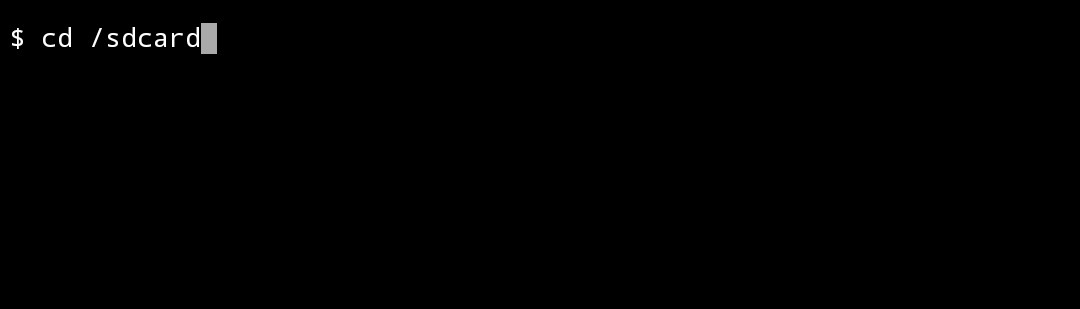 Step3:-
 Then press enter button.
By this steps we go in sdcard folder means in sdcard.
Then we use ‘ls’ command to view the folders in sdcard.
Use ‘ls’ command
Step1:- Type ‘ls’
 Step2:-
 Press enter button

By this steps we can see the folders in sdcard. Then if you want to open any folder then..
How to open folders using ‘cd’
Step1 :- Type ‘cd’ then give space.
Step2 :- Then type the folder name that use want to open. (Type the accurate name without mistake)
Ex:- cd Android
 Step3:-
 Then press enter button.
By this steps we can open any folder.
Step4:- then type ‘ls’ & enter.
Ex:- ls
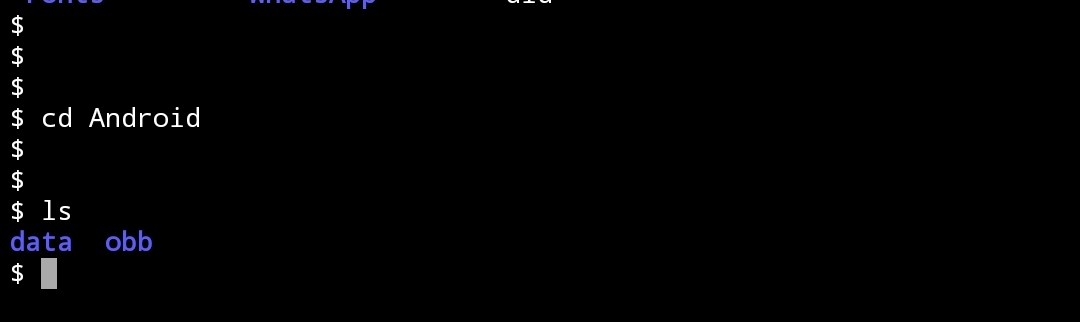
By using step4 we can view files.
3) ‘cd ..’ :- This is a simple command use for go back from any directory or folder. For going back simply type ‘cd ..’ . Means first type ‘cd’ then space & then type two full-stop(..).
Step1:- Type ‘cd ..’
Ex:- cd ..
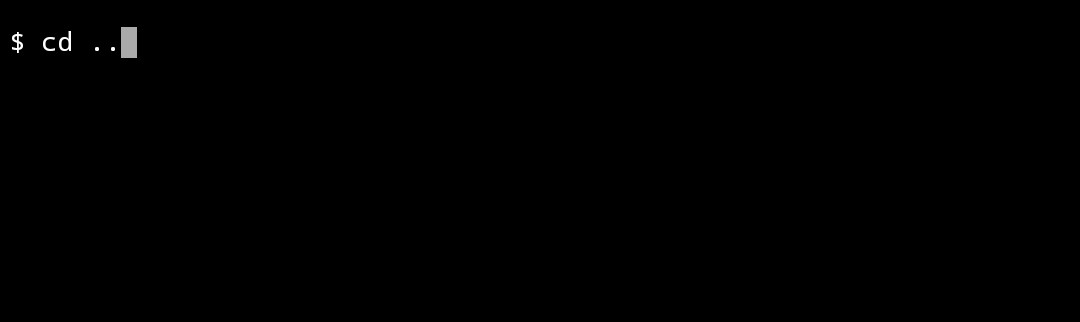 Step2 :-
 press Enter button.
By that steps you can go back to previous folder or directory.
4) ‘cd -‘ :- This is also simple command use for go to previous directory or folder but one is special in this command when we type this termux & go to previous folder then it shows the path or location of previous folder.
This command is very easy to use. First type ‘cd’ then space & then type ‘-‘ .
Step1 :- Type ‘cd -‘.
Ex:- cd –
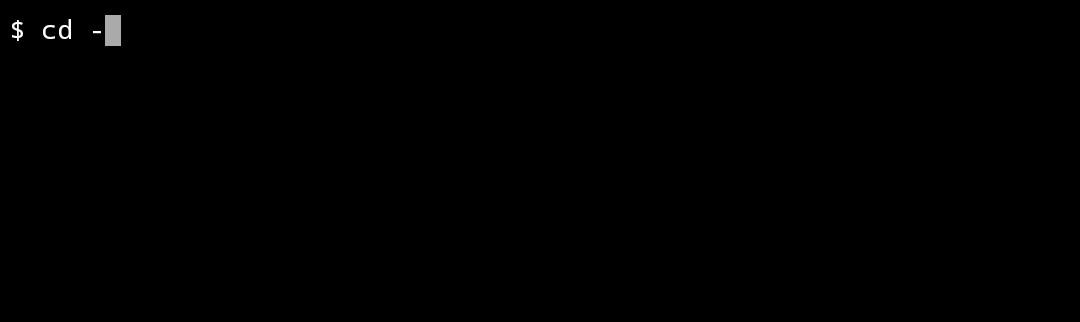 Step2:-
 Press enter button.
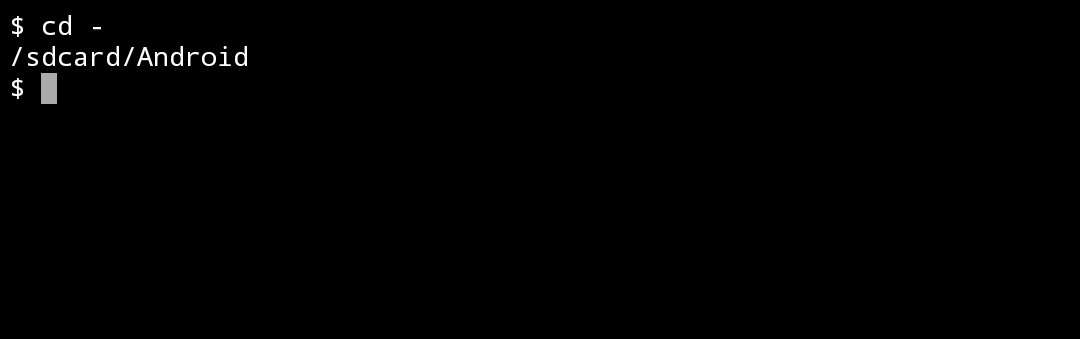
By this step we can go to previous folder & also see the path of previous folder.
5) ‘pwd’ :- This is also simple & important command. This command is use for seeing location folder where we are now. Suppose that we are in ‘Android’ folder then if you want know location folder or if you not know in which folder you are then for viewing the location or path of folders this command is used.
For use this command simply type ‘pwd’.
Step1:- Type ‘pwd’.
Ex:- pwd
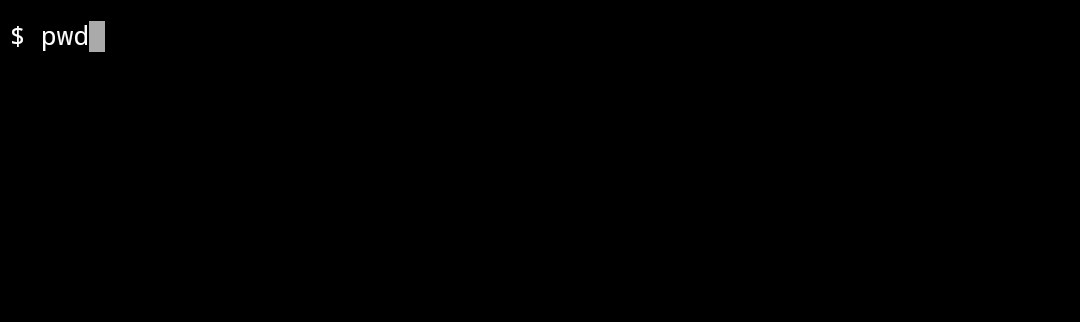 Step2:-
 press enter button.
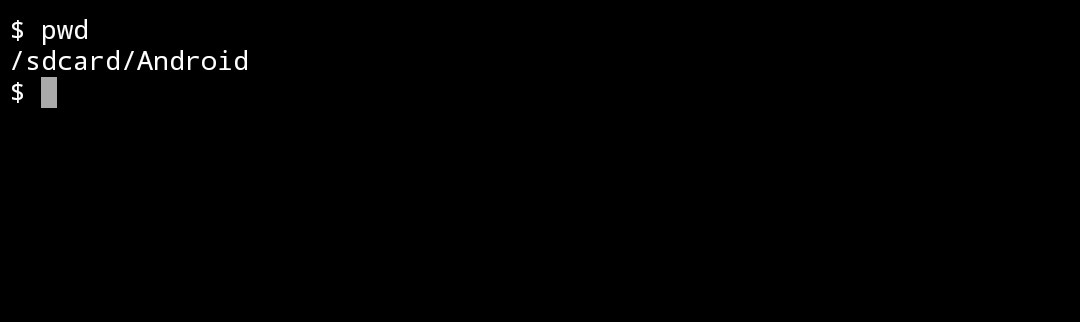
By this steps you can know the file or folder location where just you now.
6) ‘clear’ :- This command is use to clear the termux screen . Means this command erase all the data that show on screen.
To use this command simply type ‘clear’.
Step1:- Type ‘clear’
Ex:- clear
 Step2:-
 Press enter button.
By that steps you can clear the termux screen
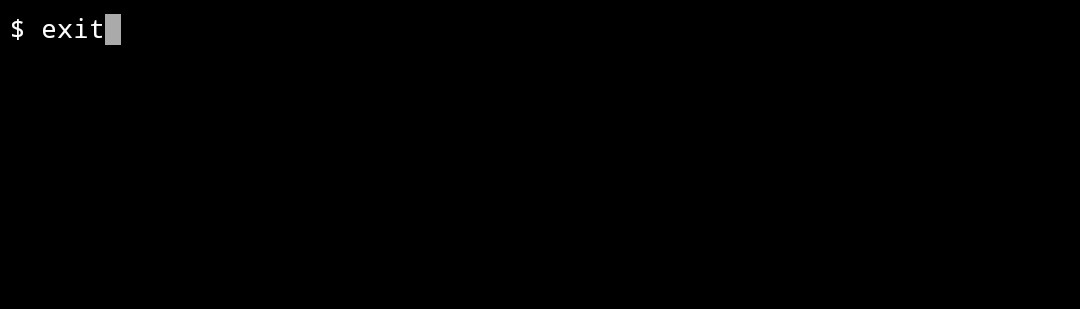
7) ‘exit’ :- This is direct command to exit termux. Meaning of this command is hide in the word ‘exit’ . As per meaning this command is use to go back or to exit from Termux .
For this simply type ‘exit’ in termux
Step1:- Type ‘exit’
Ex:- exit
 Step2:-
 Press enter button.
By this steps you exit the termux directly.
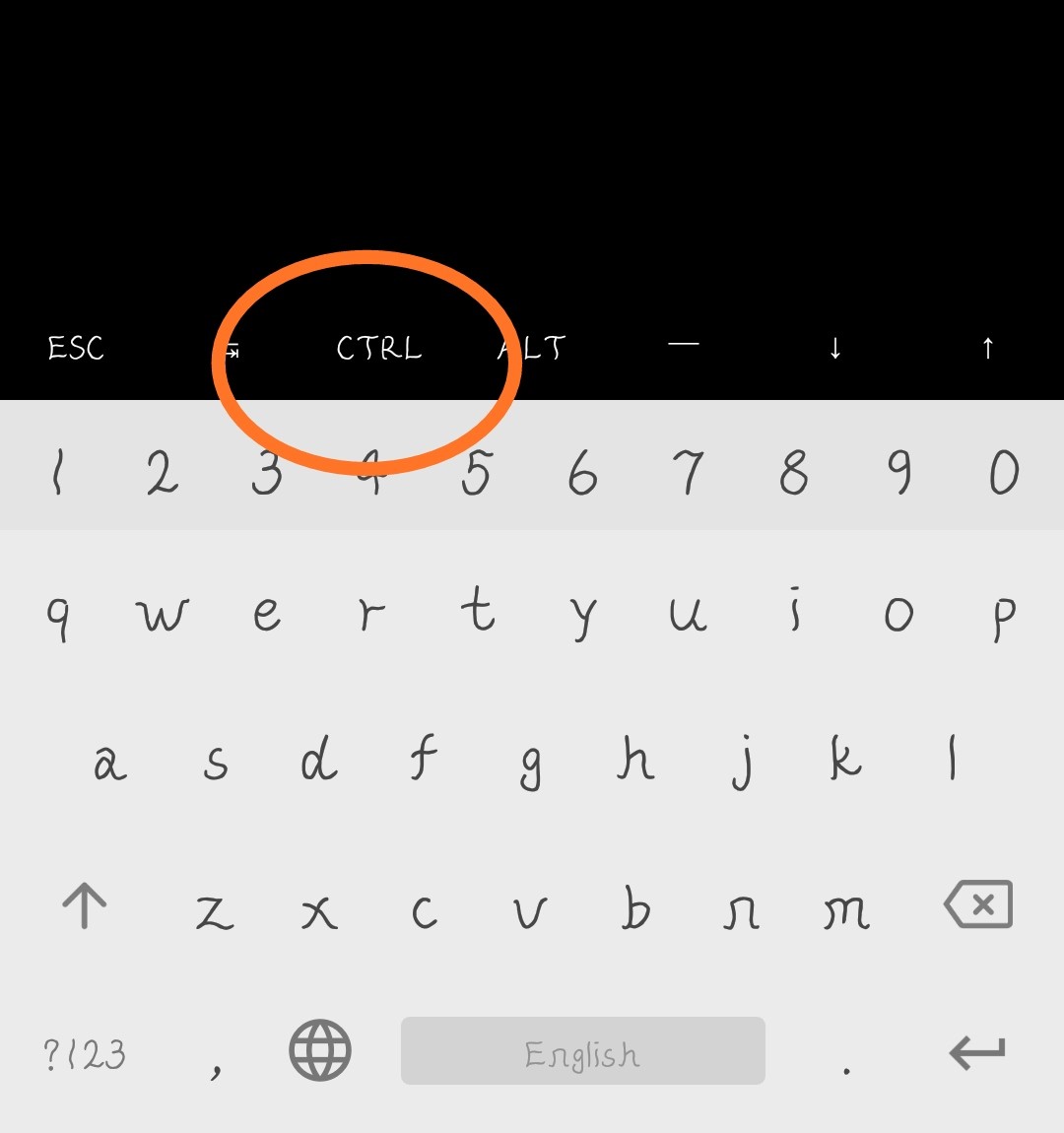
8) ‘^c’ :- ‘^c’ is the very important command use to exit the working program in termux. Use can say to this command as a shortcut key. ‘^c’ it means ‘ctrl+c’ (control + c). This command is use to stop the any program or activity that is in working. Suppose we have running a any tool . This tool is in working condition . If you want to stop this tool then you should press ‘^c’
For use this command simply press the ‘CTRL’ button is above the keyboard. Then type ‘c’.
Step1:- Press ‘CTRL’ button .
 Step2:-
 then type ‘c’
Ex:- c
 Step3:-
 press enter button.
By that steps you can exit any working program or tool.
9) ‘rm’ :- This is simple tool to remove or delete any file from Termux. This command is only use for removing any file in termux .
It’s remove only file not the folder or directory. Means this command not removes the folder or directory , this remove only TXT or APK or this type files. For removing folder next command is used.
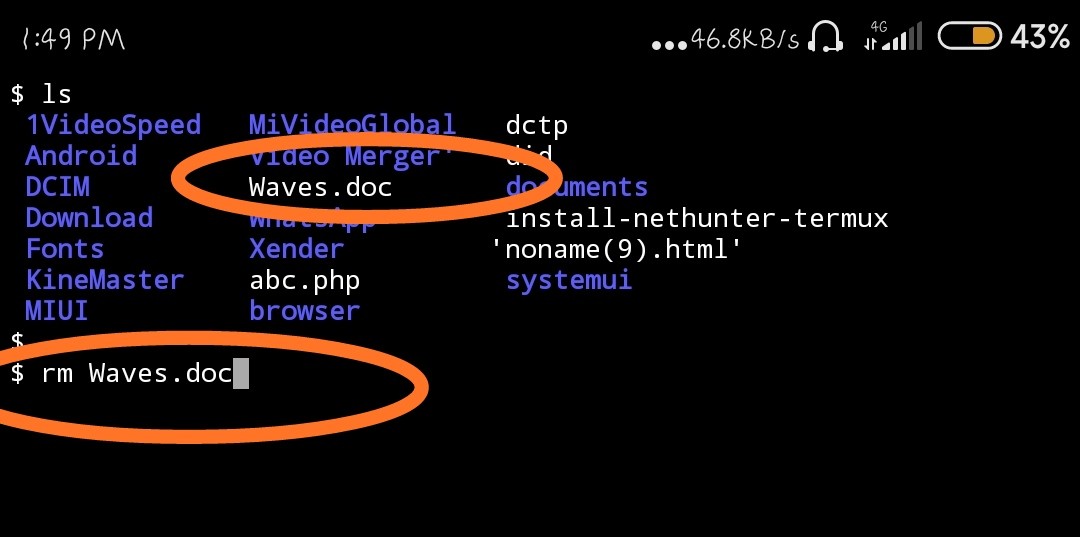
For use this command simply type ‘rm’ space then type the file name that you want to remove or delete.
Step1:- Type ‘rm’ then give space & then type the file name to remove ( Type the accurate name without mistake)
Ex:- rm Waves.doc
 Step2:-
 press enter button.

By this steps you can remove file from Termux.
10) ‘rm -rf’ :- This command is use to delete or remove any Directory or folder or file from Termux. This command use to remove any Directory or folder & also anytype of file .
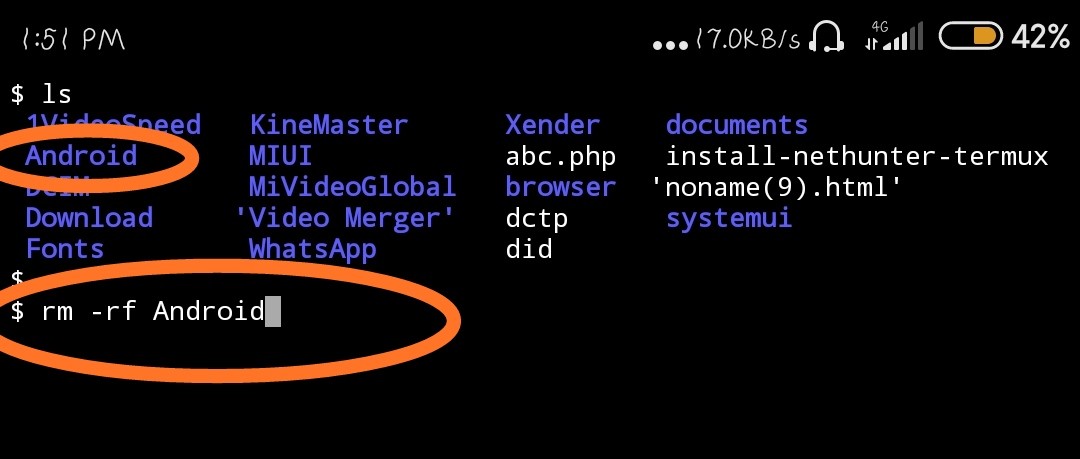
To use this command type ‘rm -rf’ then type file or folder name you want to delete.
Step1:- Type first ‘rm’ then space then type ‘-rf’ & then type file or folder name you want to remove.
Ex:- rm -rf Android
 Step2:-
 press enter button.
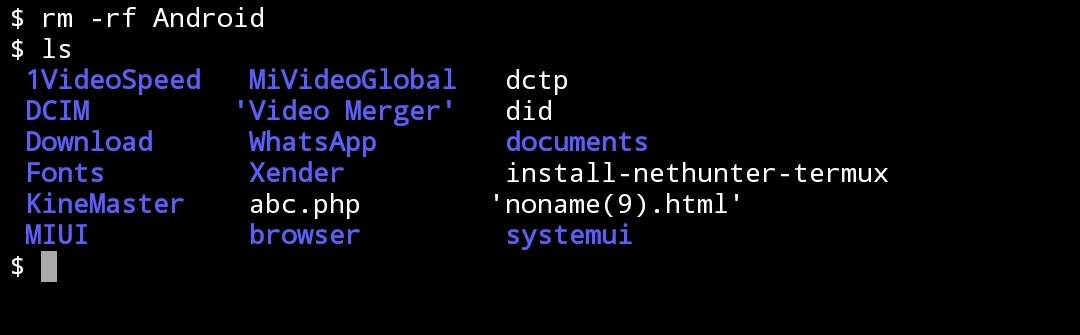
By this steps you can remove any folder or directory.
11) ‘cp’ :- This command use to copy any file & paste to somewhere. ‘cp’ means copy . Means this command is use to copy & paste to files. This command is also copy only files not the folders.
To use this command first think that which file you want to copy or where to paste. Suppose we want to copy media.txt file then first think where you want to paste this file . Then we want to paste this file in Android folder. Then go to the Android folder using ‘cd’ command then use ‘pwd’ command to get location of Android folder . Then copy this path. Then go to the file that want to copy. After type ‘cp’ command then space then type the file name for copy then space then paste the path then enter.
Step1:- Go to the file which you want to copy.
Ex:- cd Download
 Step2:-
 Then go to the location where you want to paste .
Ex:- cd Android
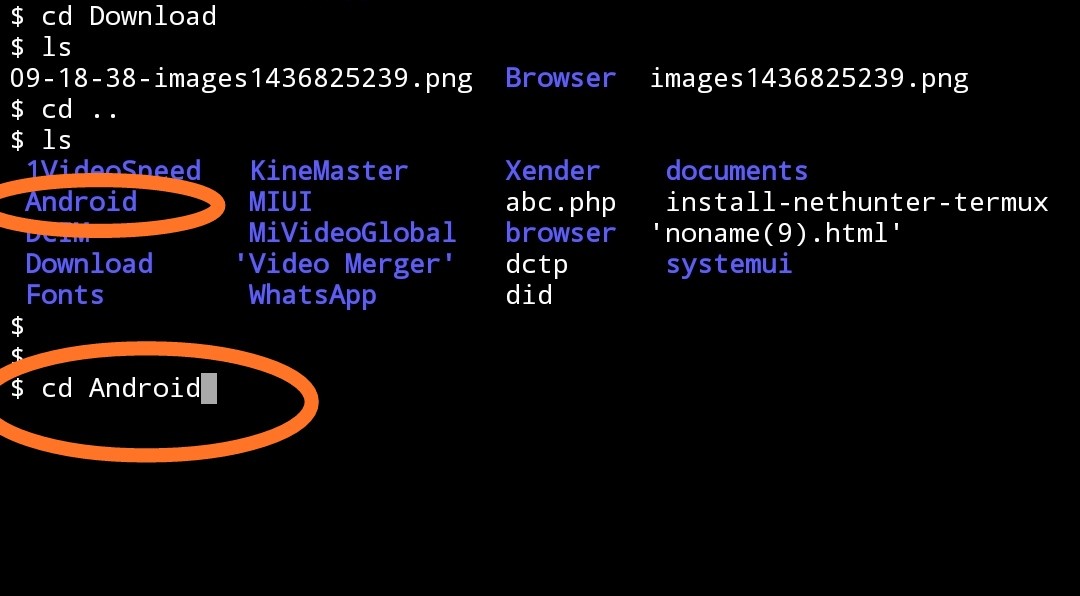 Step3:-
 Then type ‘pwd’ command
Ex:- pwd
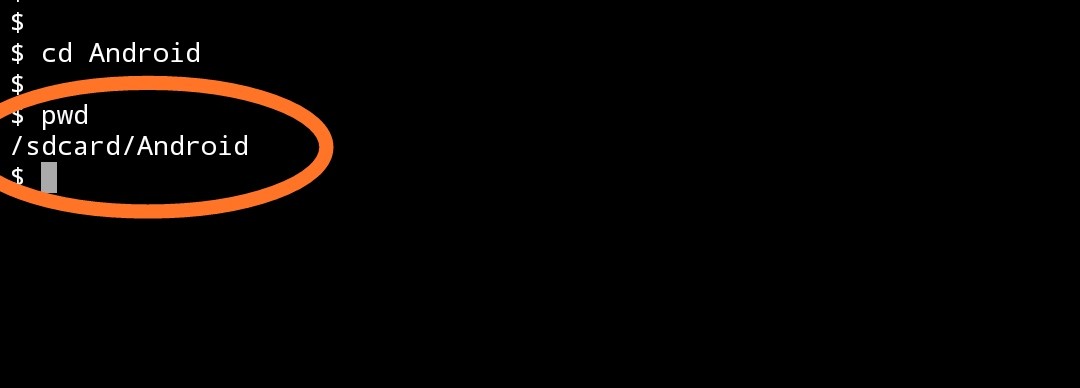 Step4:-
 Then copy the location.
 Step5:-
 Then go to the file you want to copy.
Ex:- cd Download
 Step6:-
 Then type ‘cp’ then space then type file name you want to copy then space the paste the path.
Ex:- cp Image.png /sdcard/Android
 Step7:-
 Then press enter button.
By this steps you can copy and paste any file to any folder.
12) ‘cp -r’ :- This command is same as ‘cp’ but this command is use to copy folder or file or directory. Use of this is also same but you shall use ‘-r’ after ‘cp’ command.
13) ‘mv’ :- This command is use to move or cut any file or folder or directory to other location . Means this command use to move any file to any other location
This command is also use as ‘cp’ command . But in the space of ‘cp’ you had use ‘mv’ command.
14) ‘mkdir’ :-This command is used to make a directory. Means this command is used to make a folder or directory. This is very easy command to use.
To use this command first type ‘mkdir’ then type the name which you want to give to your folder. Then enter.
Step1:- first type the command ‘ mkdir’ then type the folder name ‘ Termux’ .
Ex:- mkdir Termux
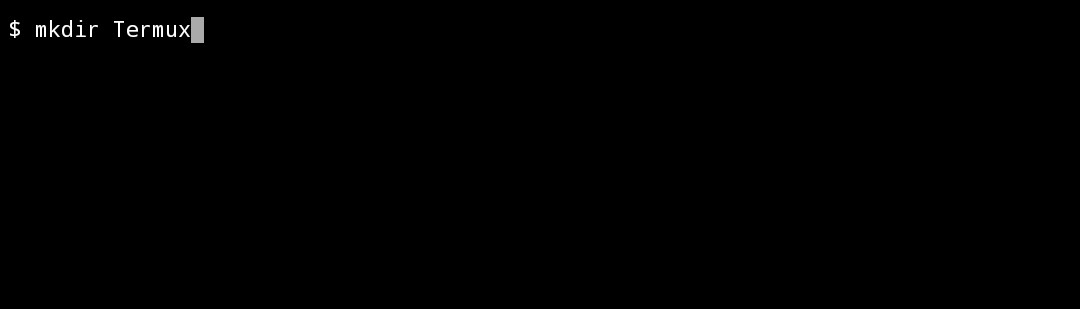 Step2:-
 Then press enter button.

By this steps you can make the folder or directory.
Are the some basic commands that we will use daily when using termux or when working on termux.
Then Now Bye Bye
We meet in my next post
Watch Video here👇
For Download this 👆video
Click👇here
Download
For Download theory part of👆this video Click👇here for download PDF
Download
For Download zip file of video & theory
Click👇here
Download


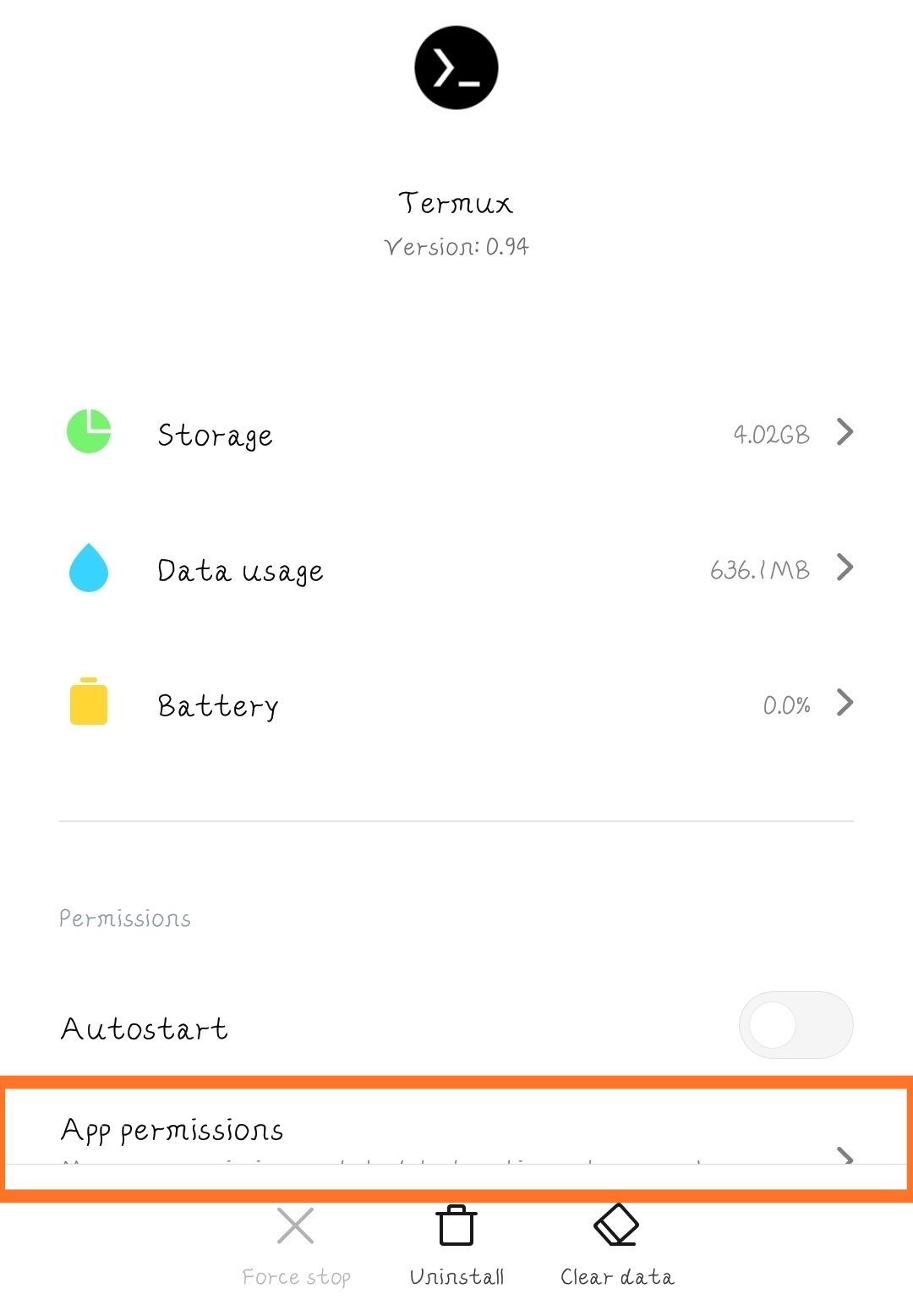
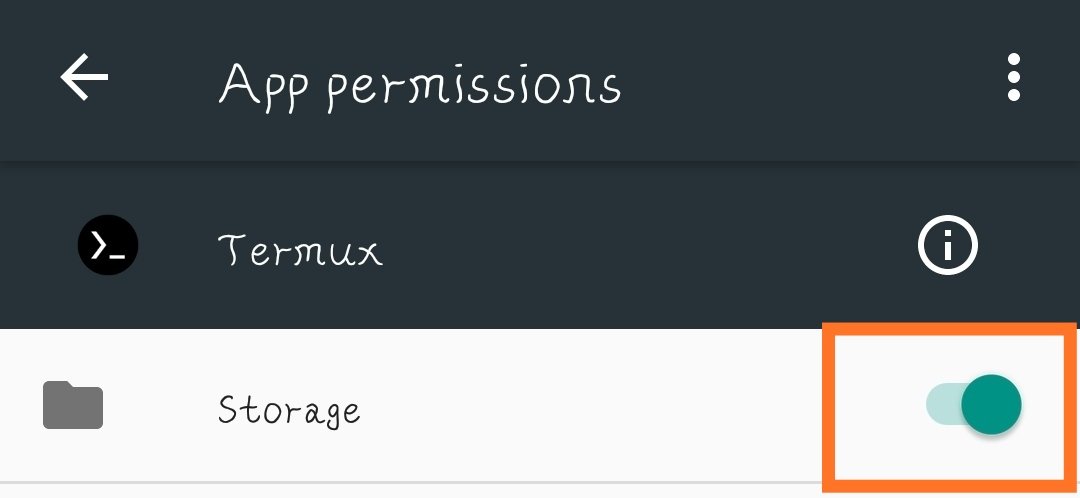




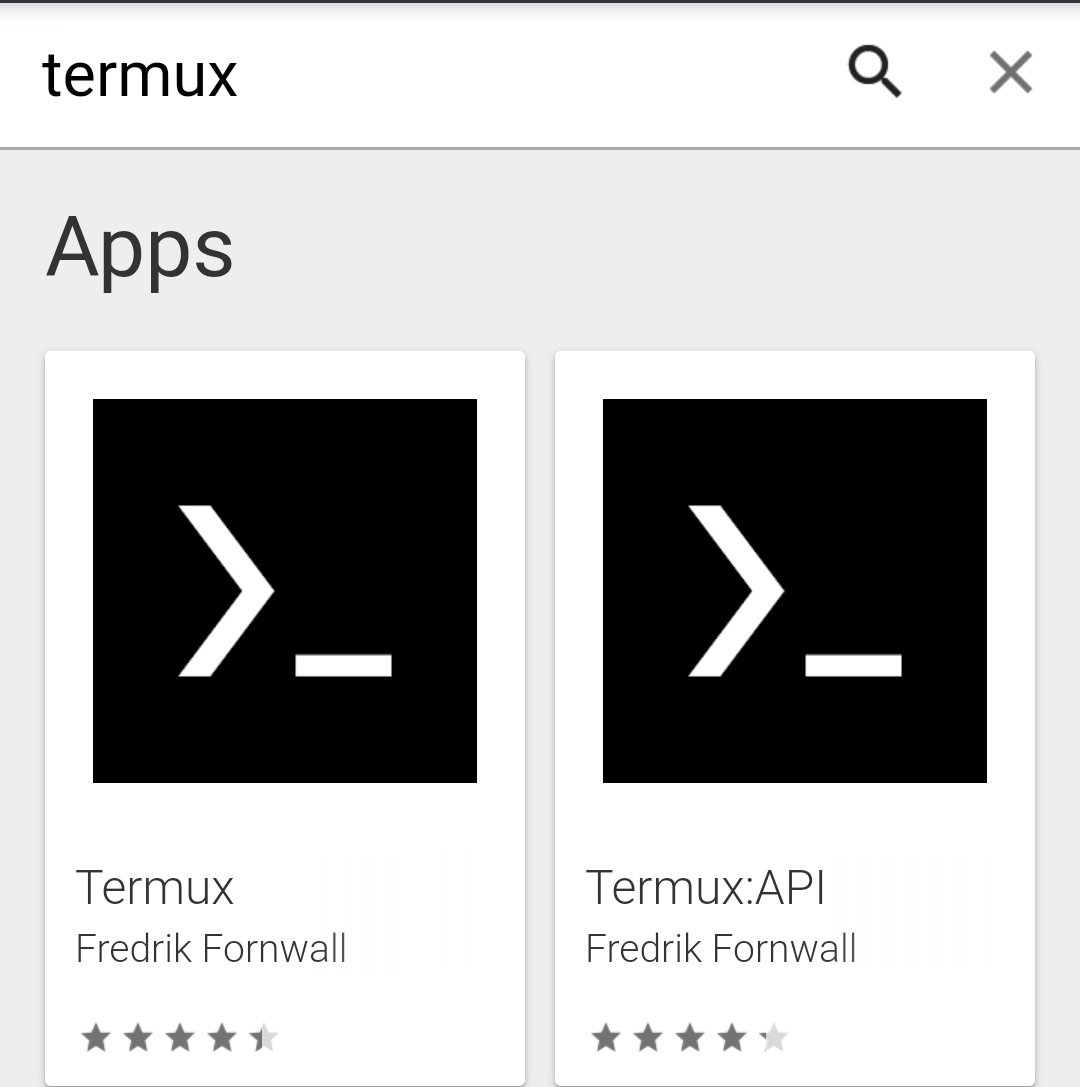
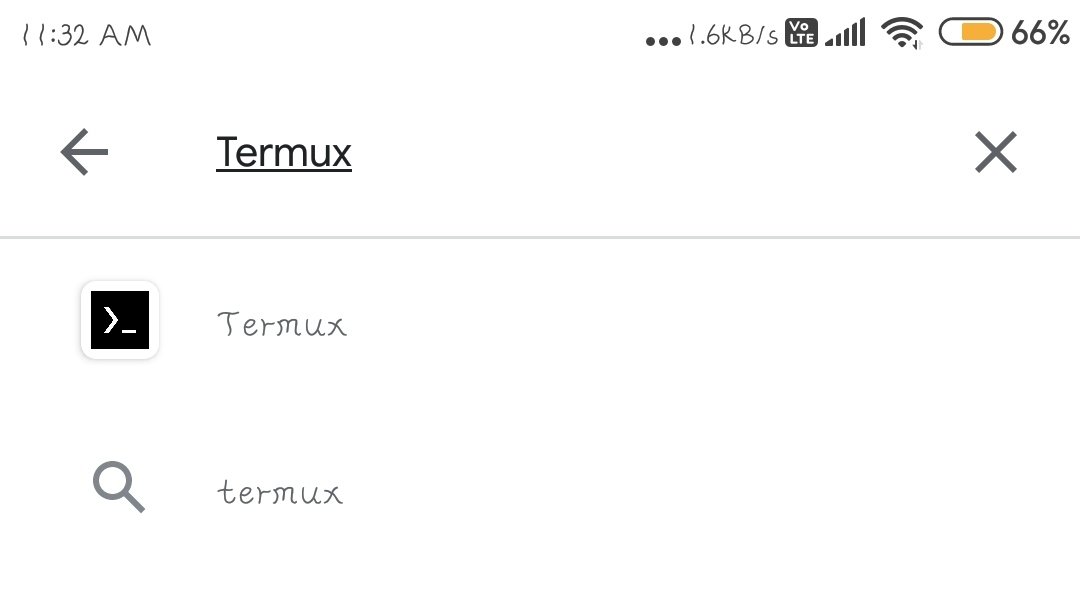 Step2:- Click on the first apk name as “Termux” & icon as first picture in this post.
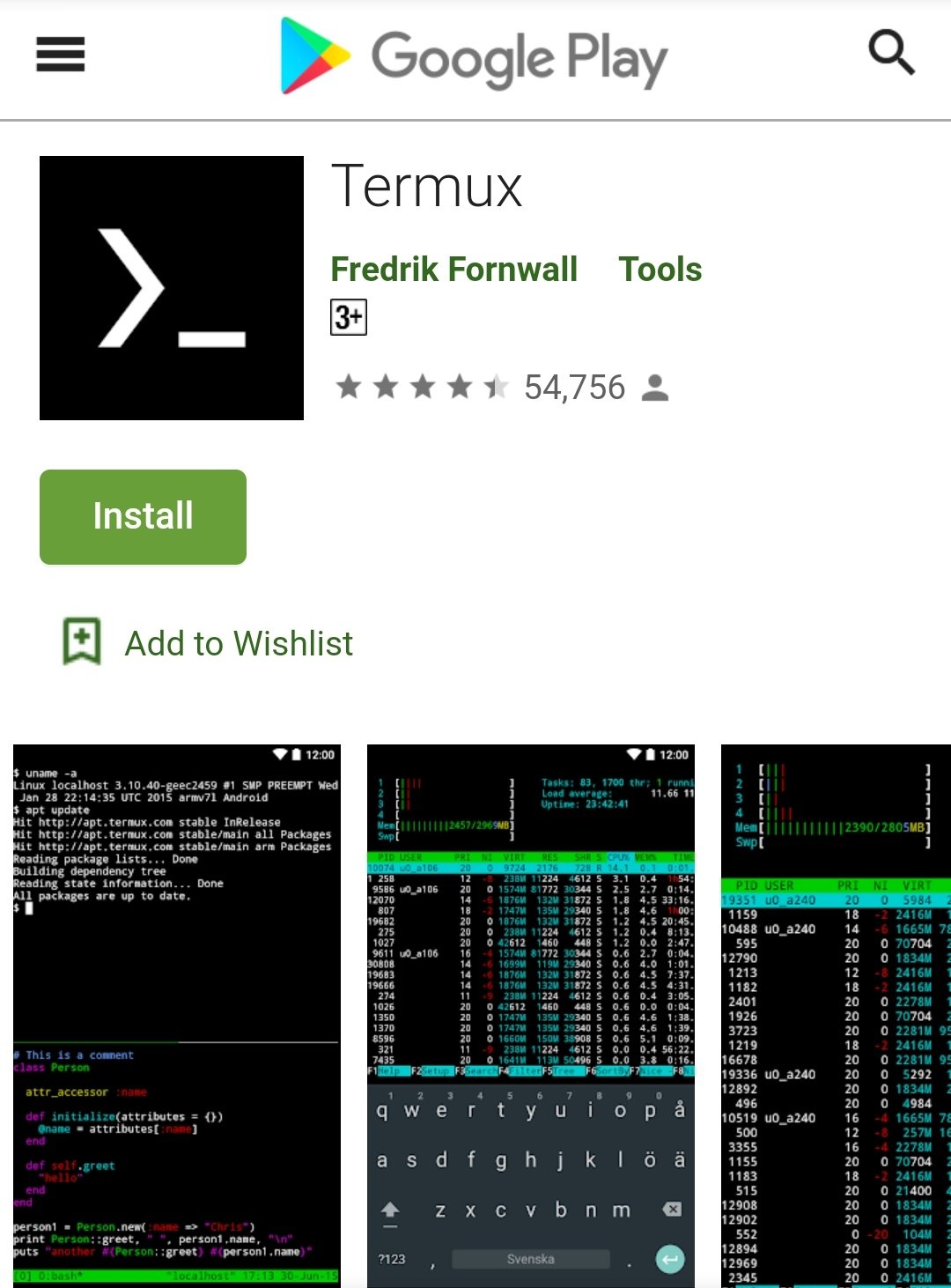
 Step3:- Then press on Install button.
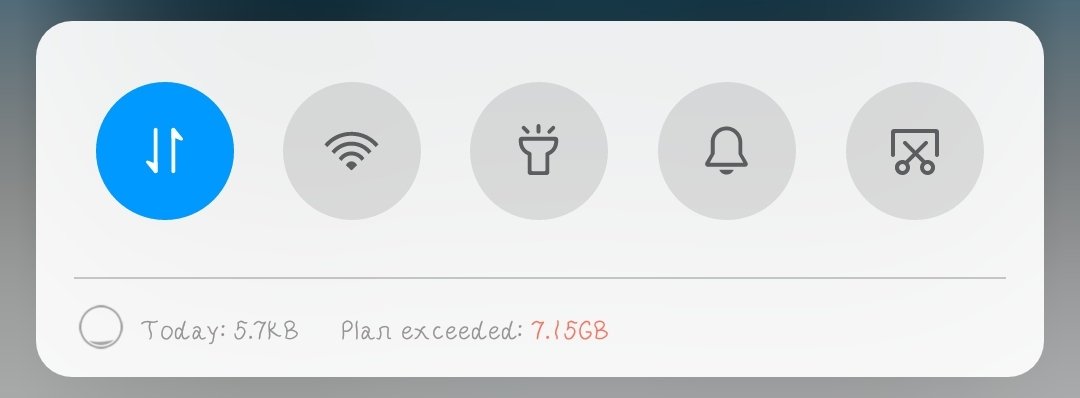
 Step4:- Turn on the Mobile data or Internet Connection
 Step5:- Open the Termux app.
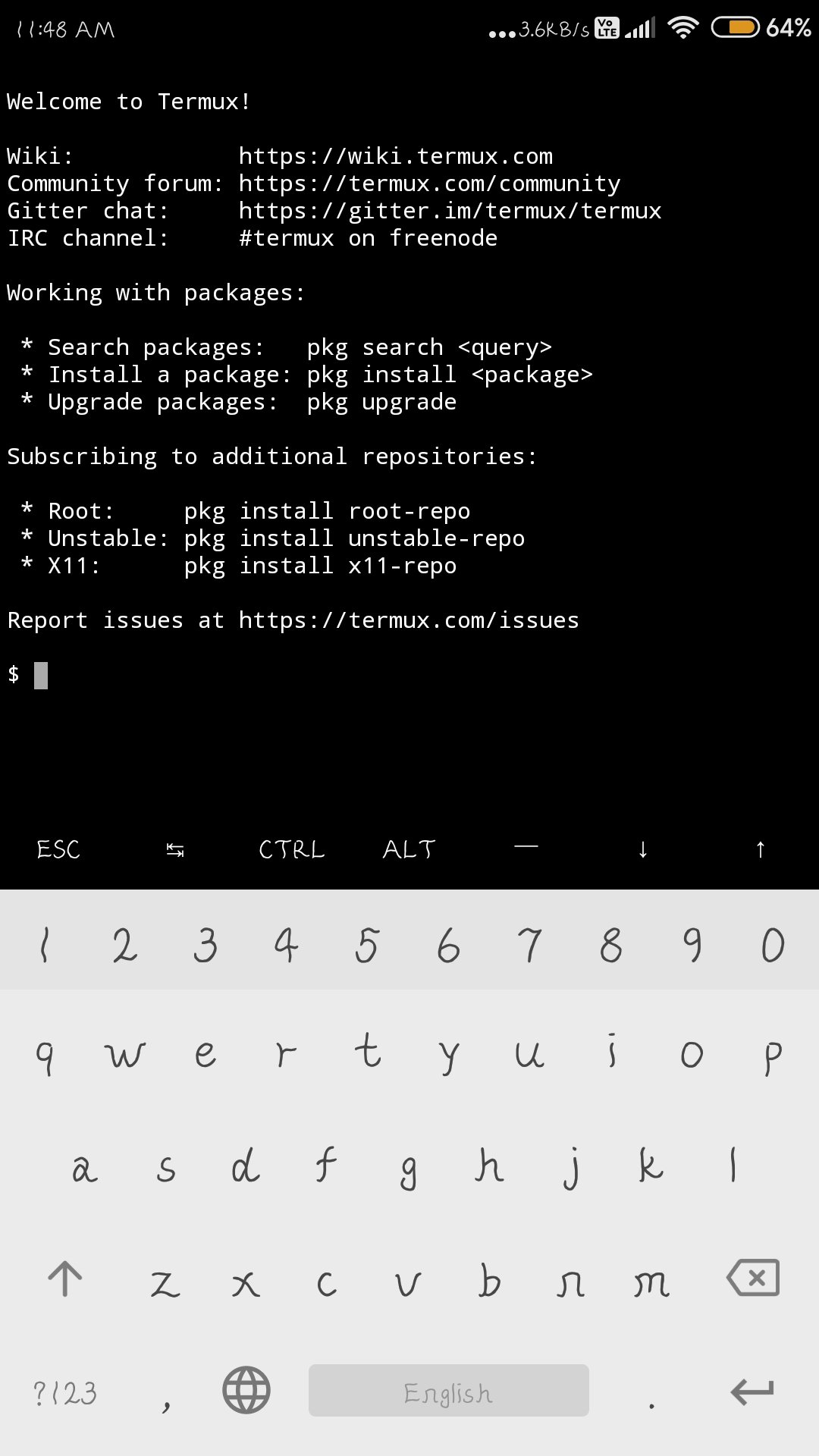
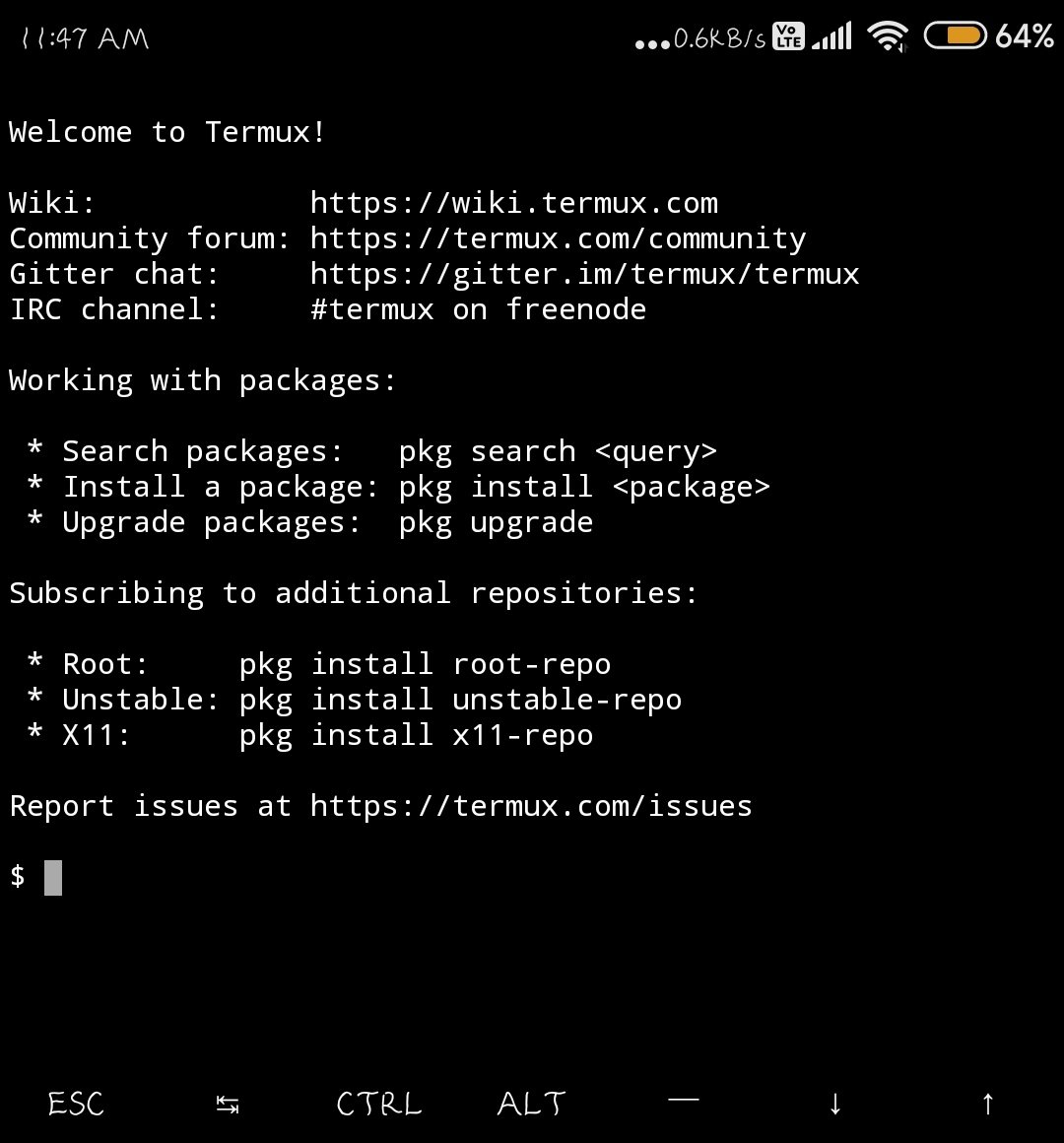 Step6:- After that Termux is ready to use.
 You can also install termux directly by clicking on following link.👇

 Termux Teach Hindi